
Before you perform initial data synchronization, complete the Download step so that reference data such as code sets, Local Education Agencies, and Schools are available. Publishing without this reference data downloaded can cause errors.
The Accounts category you publish in this procedure reflects the Form 9 financial data your district has loaded into PowerSchool ERP through the Biannual Form 9 Report DEX Upload. Complete DEX Upload for the Year and Report Half you want to synchronize before you perform the steps below.
-
Perform Initial Data Synchronization
-
This step is necessary for DEX to recognize and publish further changes to the Ed-Fi ODS.
-
-
Manual Synchronization
-
We recommend manually initiating synchronization from the dashboard for the first time.
-
-
Setup and Initial Publishing
-
Complete both setup and initial manual publishing within the same week.
-
Start Early: Begin setup and manual synchronization early in the week, as there is only a one-week window for user-controlled setup and synchronization.
-
Automatic Processing: The first Saturday night after setup, weekend processing will automatically handle everything, and users will lose control over any remaining initial synchronization.
-
-
-
Publish the Accounts categories.
Initiate publishing by clicking the associated three dots on the right and selecting Now – All (or Now – Changes if some data has already been published in the category).
Complete synchronization and configure settings
After synchronization from the dashboard is completed:
-
Select the gear icon at the top right to return to the Configuration page.
-
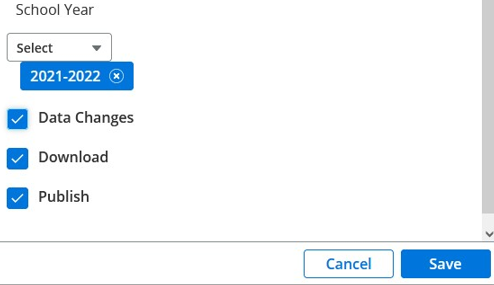
Under Profiles, click More… and select Edit.
-
Check Data Changes to enable automatic transactional processing and click Save.
-
Data changes will be published automatically, in near real time for most entities; otherwise, during the weekday nightly process.
-
From this point on, use the Dashboard primarily as a monitoring and debugging tool, not as the main method for initiating publishing.