
To Review Data:
-
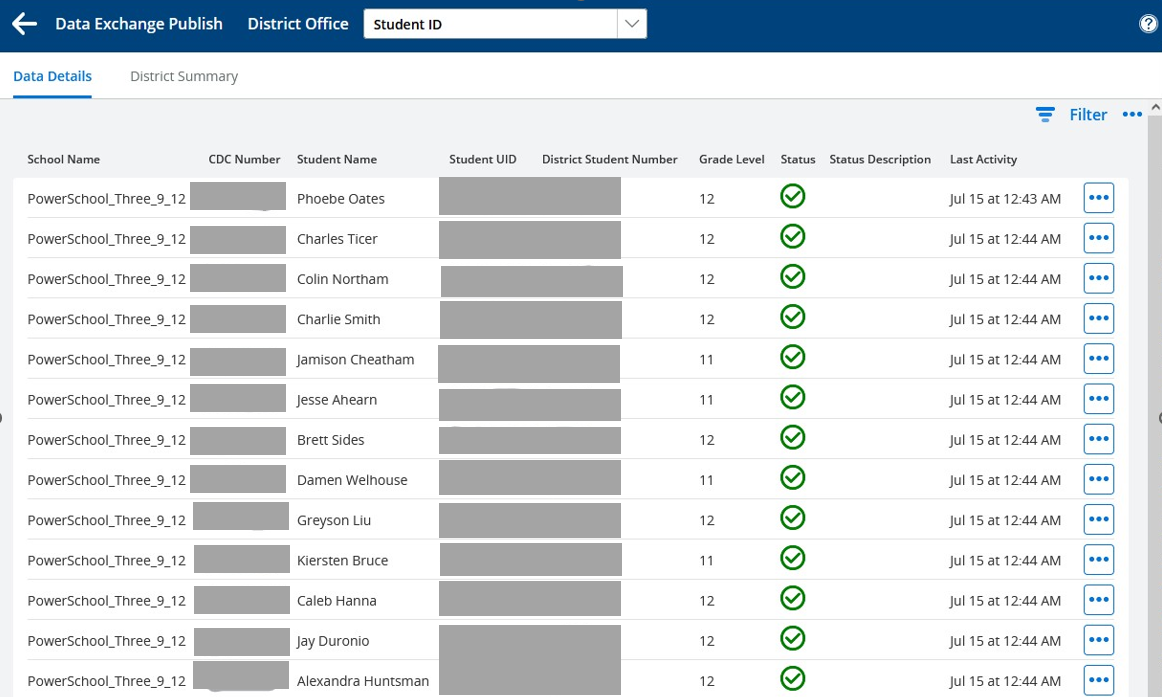
Click the resource name on the Dashboard to display a list of published or processed records. For example, clicking Account shows the Data Details page for all processed Account records. For Indiana, the Dashboard displays only entities in the Accounts category, reflecting the Indiana Finance Ed-Fi Profile.
-
Return to Dashboard:
-
On the Data Exchange Publish page, click the Go back option (left arrow) to return to the Dashboard.
-
-
View Entity Name:
-
Select the entity name for which you want to view the records.
-
Look at the right-most columns on list pages to see status and activity information for all entities.
-
Note that other columns will vary depending on the entity. Each entity includes key elements and other helpful data for identifying and troubleshooting.
-
-
-
Sort Data:
-
-
Click the Title of any column to sort the data.
-
The first click sorts the data from first to last.
-
The second click sorts the data from last to first.
-
Use this option on the Status column. Clicking it once will sort dependencies and errors to the top of the list.
-
-
Filter Data:
-
-
Every list page includes a filter at the top right.
-
You can filter based on any of the columns displayed on the page.
-
Click the Filter to display the filtering options.
-
-
Select a filter: When you choose a filter, the + icon next to it becomes active.
-
View entered filters: Each filter you've entered appears in a blue box with the value and an x on the right.
-
Remove a filter: Click the x on any blue box to remove that specific filter. Other filters will remain.
-
Clear all filters: Click Clear All to remove all filters, including the most recent one, from the top of the page.
-
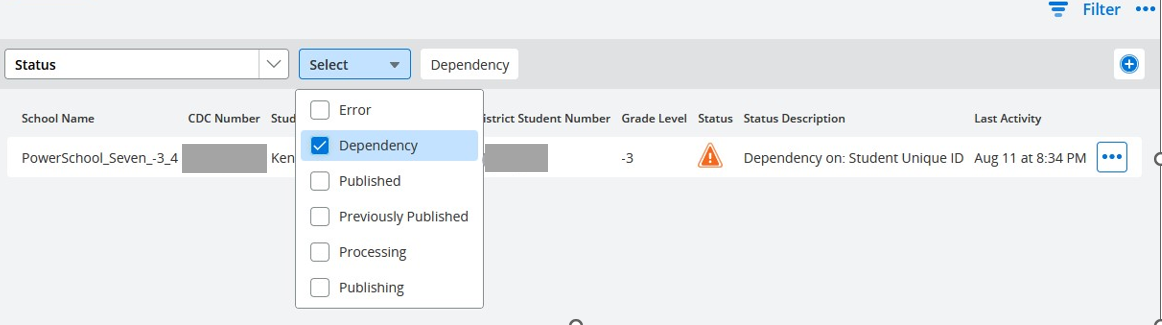
To limit the list to error or dependency records:
-
Go to the Filter options and select Status.
-
A dropdown menu will appear. Choose the status you want to review.
-
Dependencies and errors will display the dependency reason or the returned error message under Status Description, if available.
-
Note: Selecting more than one status option at a time may cause the filter to not work as expected. Typically, the last selected option takes precedence, and others are ignored.
-
-
Record Details: Click More… next to a record on any list page to see the available actions.

-
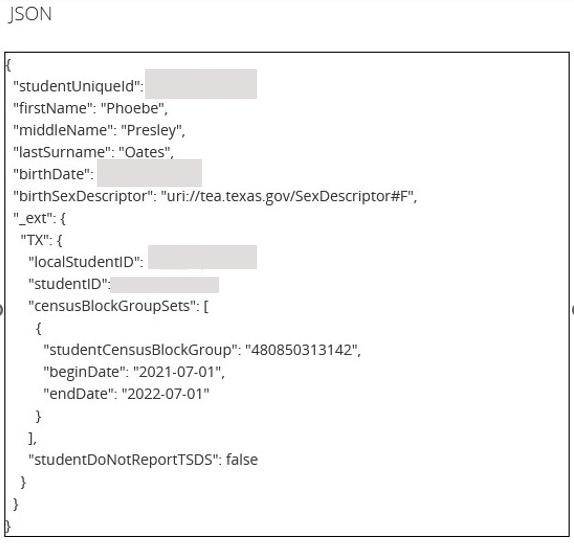
Details: This section displays publishing details, including the actual JSON sent to the ODS.
-
Resource:
-
Shows the Entity name and DEX identifying code.
-
-
Resource ID (External):
-
Displays the GUID the ODS returns when it successfully publishes the record.
-
-
Internal Identifiers:
-
Publishing ID, Dashboard ID, Profile ID: Internal DEX identifiers.
-
-
Organization ID:
-
The published school or district state identification number.
-
-
-
JSON Content
The message JSON content is sent to the ODS.
-
Note: JSON is not included for dependency records (JSON is not constructed for records held in dependency).
-
Error records: JSON content is removed after a few days. It can be reinstated by republishing a single record or all error records for the category.
Returning to List
Click Close to return to the list.
Republishing Records
To republish, initialize republishing for a single record.
Deleting Records
-
To delete a record, send a Delete event to the ODS for that record.
-
Note: The Delete event is sent without any validation, so even if a record is valid, it will still be deleted.
-
Republishing changes for the category will republish the record if it is still valid.
-
This option is rarely used but can be helpful for some intermittent scenarios or for testing purposes.
-