
The Download page lets users view the status of the downloaded resource and review the data. All information in this category is downloaded and stored in PowerSchool publishing tables and used with data quality checks to ensure compliance before uploading and publishing to the state Ed-Fi ODS.
Download Data
-
Click the gear icon at the top right on the Publishing Dashboard to open the Configure page.
-
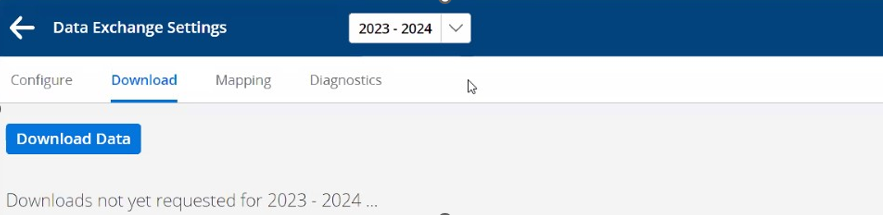
Select Download from the top of the page. If no downloads have been initiated previously, a Download Data button will be displayed. If downloads have been initiated before, one or more panels will appear below (as described).
-
Download Data
-
-
Click the Download Data button to start downloading data from the Ed-Fi ODS provided by IDOE. DEX will search for entities that IDOE preloaded into the Ed-Fi ODS for district reference.
-
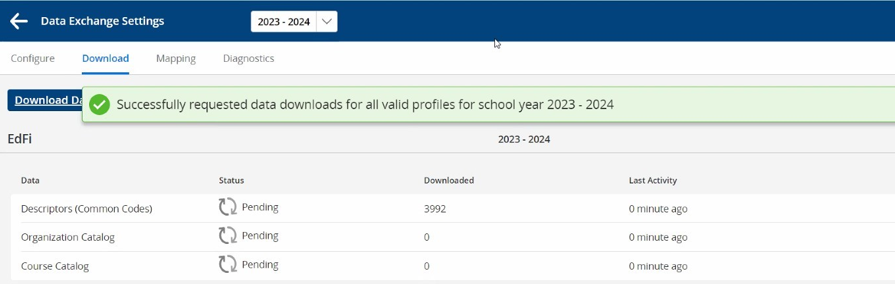
These entities will then be displayed on the Download page, and the download process will begin.
-
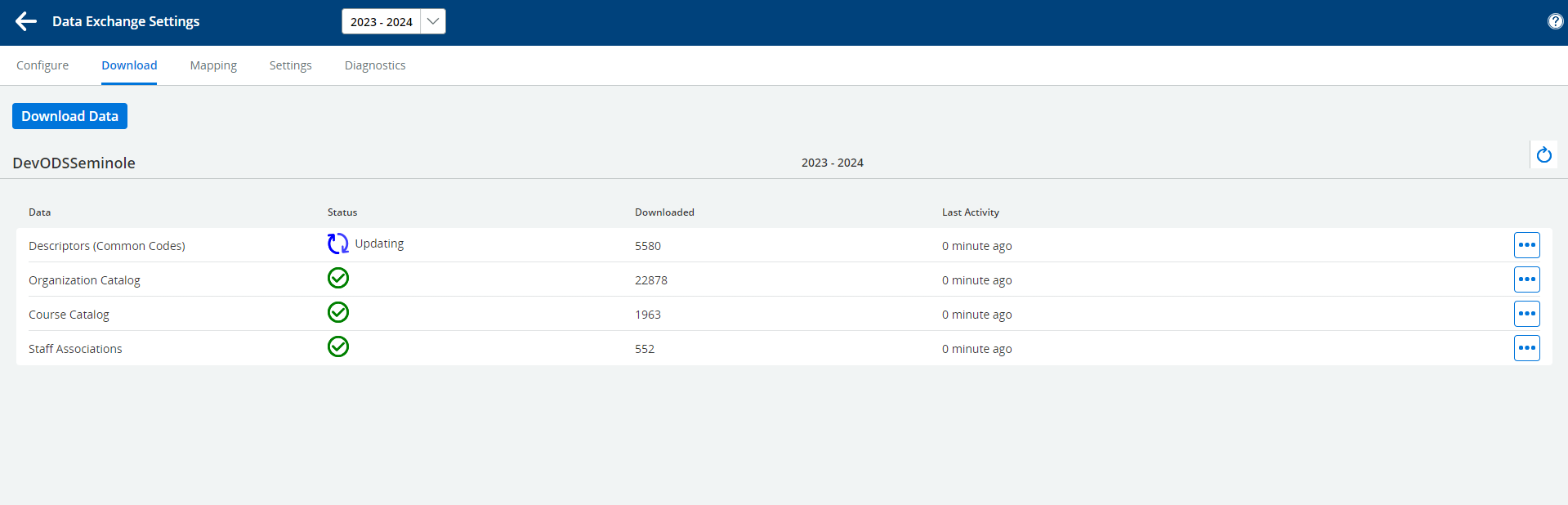
The Downloaded column will begin to show an increasing count of records for each entity.
-
The download process may take up to an hour or more to complete.
-
Upon completion, a green checkbox will appear in the Status column.
-
-
A separate Download panel appears for each active profile.
-
Each Download panel will show the profile name and the entities available for download within that profile.
-
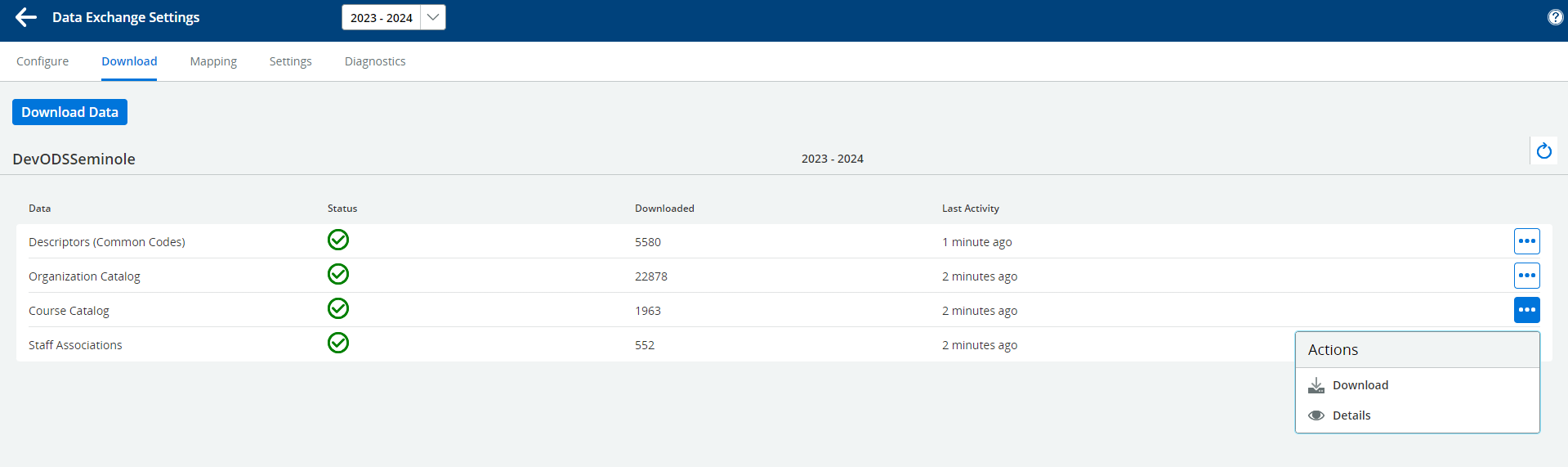
To update downloads manually, click More … on the right and select Download.
-
You can select a download category before other downloads are completed. It will remain in waiting status until any prior downloads are finished.
-
Downloaded data is stored by profile and school year. Therefore, you must download data separately for each school year that a profile is used, if the profile is valid for multiple school years.
i) Select the school year from the dropdown at the top of the page.
ii) If reusing a profile from a previous year, download data for the current school year (instead of the 2023-24 school year).
iii) When IDOE releases updates, repeat the downloads, especially for Descriptors
IDOE Downloaded Entities
-
Descriptors (Common Codes):
-
Descriptors are code values, such as Exit codes or Attendance codes.
-
IDOE has defined codes for state reporting use, corresponding to legacy Code Tables.
-
You must download these codes to use them when publishing IDOE-required data.
-
-
Ed-Fi includes core default codes in addition to IDOE state codes.
-
These codes are also downloaded to publish data needed for the Ed-Fi ODS but not promoted to IDOE.
-
-
-
Organization Catalog:
-
Includes all Local Education Agencies and Schools recognized by IDOE.
-
Basic identifying data is downloaded.
-
Districts will publish state reporting data for their district and schools but need the downloaded identifying records to do so.
-
Reviewing Downloaded Data
-
To review downloaded data, click More … on the right and select Details.
-
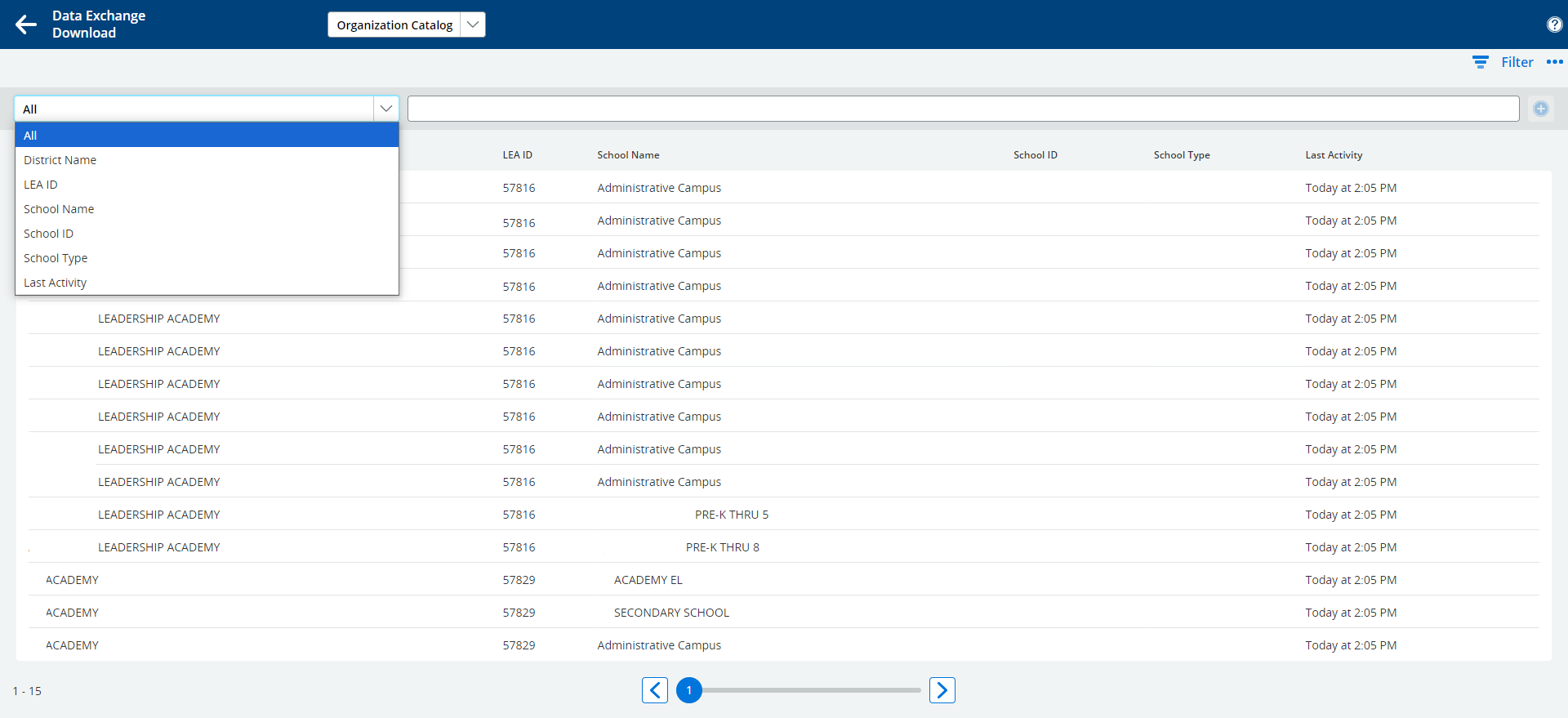
Click Filter to filter data based on District Name, LEA ID, School Name, School ID, School Type, or Last Activity.
Descriptors
The details show the downloaded Code Set Names and the number of values defined for each code set. Use the paging scroll at the bottom of the page to navigate through the list. The Descriptor Summary is available in a drop-down menu at the top of the page.
-
To view descriptor values, select Descriptors (Common Codes) from the drop-down menu.
-
Click on Filter at the top right to filter the list.
-
-
Select Code Set Name on the left.
-
Type the name of the code set you want.
-
-
Click the left arrow at the top of the page to return to the Download page.
Organization Catalog
This view lists the downloaded LEAs and schools. You can filter the list by:
-
District Name
-
LEA ID
-
School Name
-
State School ID